


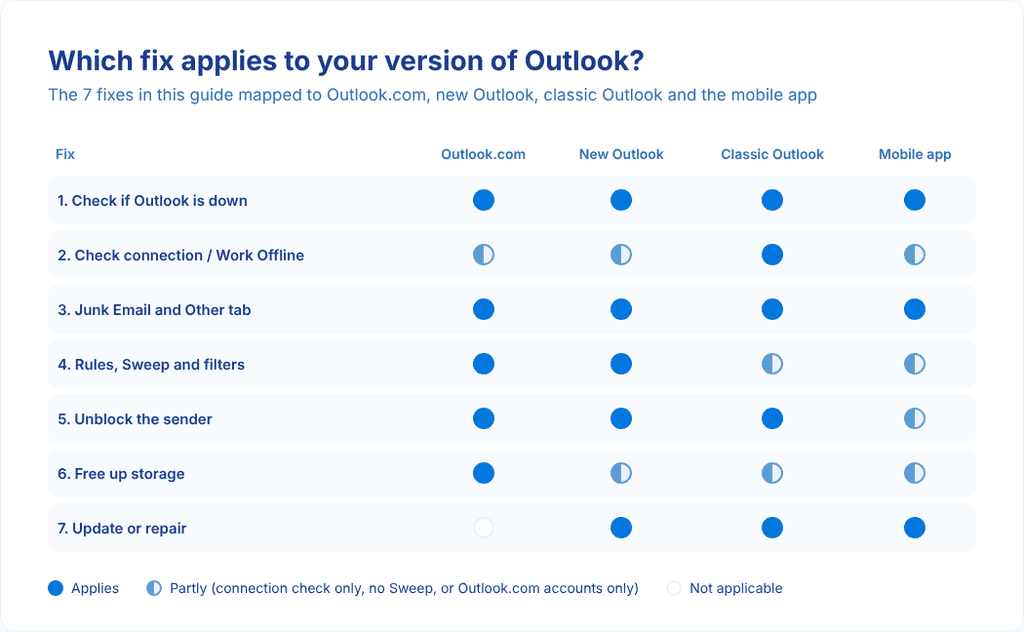
When new emails stop appearing in Outlook, it’s not always obvious where the problem lies. Messages may be going to the wrong folder, a filter could be hiding them, or a storage limit may be preventing new mail from coming through. Sometimes, Outlook simply stops syncing properly.
Before changing account settings or reinstalling the app, it’s worth checking a few common causes. The issue may be easier to resolve than you think, and you can work through the checks below without jumping straight into more complicated troubleshooting.
1. Check if Outlook is down
Before changing any settings, rule out the simplest cause of Outlook not receiving emails.
If Microsoft’s servers have an issue, nothing you change on your side will bring your emails back.
Open Microsoft’s service status page and look for Outlook.com. A warning there means Microsoft already knows about the problem. Using a work or school account? Its status (Exchange Online) is shown to your IT admin in the Microsoft 365 admin center, so ask them.
If there’s an outage, the only fix is patience. Wait for the service to come back, then check your inbox again.
2. Make sure you’re online
Outlook (mainly classic) needs a working connection to fetch new mail. Open any website in your browser, and if it doesn’t load, your connection is the culprit.
Classic Outlook has an extra trap: Work Offline mode. When Work Offline is on, classic Outlook won’t send or receive anything until you reconnect.
To switch it off:
- Open the Send / Receive tab.
- Select Work Offline. If it’s highlighted, offline mode is on.
- Check the status bar at the bottom. “Working Offline” should disappear.
Using the new Outlook for Windows? It has no Work Offline button, so it syncs with your mail server automatically whenever you’re online.
3. Look in Junk Email and the Other tab
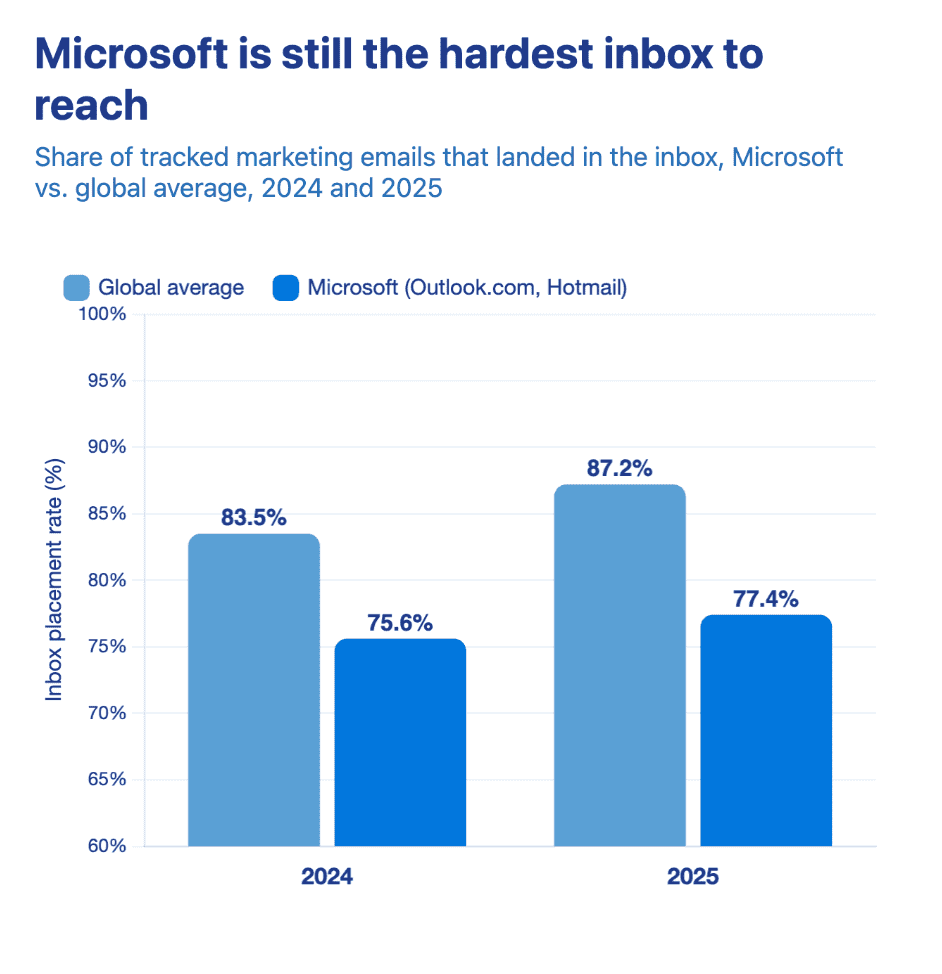
Outlook’s spam filter is strict, and it sometimes catches a real email by mistake. In Validity’s 2026 Email Deliverability Benchmark, Microsoft had the lowest inbox placement rate of the major mailbox providers in 2025: 77.4% of tracked marketing emails reached the inbox, against a global average of 87.2%.
The email may have arrived in your mailbox but been moved to another folder, such as Junk Email, Archive, or Deleted Items.
This is one of the most common reasons for not receiving emails in Outlook. Open Junk Email in your folder list and look for the message.
Found it? Mark it as Not junk so emails from that sender reach your inbox next time.
But check in soon. Outlook.com automatically deletes junk e-mail 10 to 30 days after it arrives, after which it might be gone forever.
Next, check the Other tab at the top of your inbox. Focused Inbox splits your mail into two tabs and files less important messages under Other.

Screenshot placeholder
Focused and Other tabs in the Outlook inbox
Is your missing email hiding in the Other tab? Screenshot: Microsoft Outlook.
If your email is there, select Always move to Focused to keep that sender in your main view.
4. Review your rules, Sweep and inbox filters
Rules are handy for organizing mail, but one wrong condition can move new emails out of sight. If Outlook is not receiving emails you expect, a forgotten rule is a likely suspect.
Here’s where to find your rules:
- Outlook.com and new Outlook: go to Settings > Mail > Rules.
- Classic Outlook: go to File > Manage Rules & Alerts.

Turn off anything that moves, deletes or forwards messages unexpectedly. Rules act on mail arriving in your Inbox, so also check the folders they move mail into.
Check Sweep as well. It can automatically move or delete emails from a sender, and those settings are easy to forget.
Finally, look at the Filter option above your message list. If it’s set to Unread or Flagged, new messages may simply be hidden from view.
5. Unblock the sender
If the missing mail is from one person in particular, check whether you blocked them by accident.
In Outlook.com and new Outlook, go to Settings > Mail > Junk email. Look under Blocked senders and domains and remove the address if it’s there.
While you’re there, add the sender to Safe senders and domains. Messages from safe senders won’t be moved to your Junk Email folder.
In classic Outlook, select Home > Junk > Junk E-mail Options, then open the Blocked Senders tab.

If none of that helps, the problem may be on the sender’s side. Emails that fail authentication checks like DMARC are often filtered as spam before reaching you. Since May 5, 2025, Microsoft requires domains that send more than 5,000 emails a day to Outlook.com to pass SPF, DKIM and DMARC, and sends non-compliant mail from those domains to Junk.
6. Free up your storage
Full storage is an easy-to-miss reason for not receiving emails in Outlook. Once your storage is full, Outlook.com can’t send or receive email.
Here’s how it works, according to Microsoft’s storage limits page:
- 15 GB of email storage on a free account
- 100 GB of email storage with a Microsoft 365 subscription
- 5 GB of free cloud storage, shared between OneDrive, Outlook.com attachments and Microsoft 365 apps
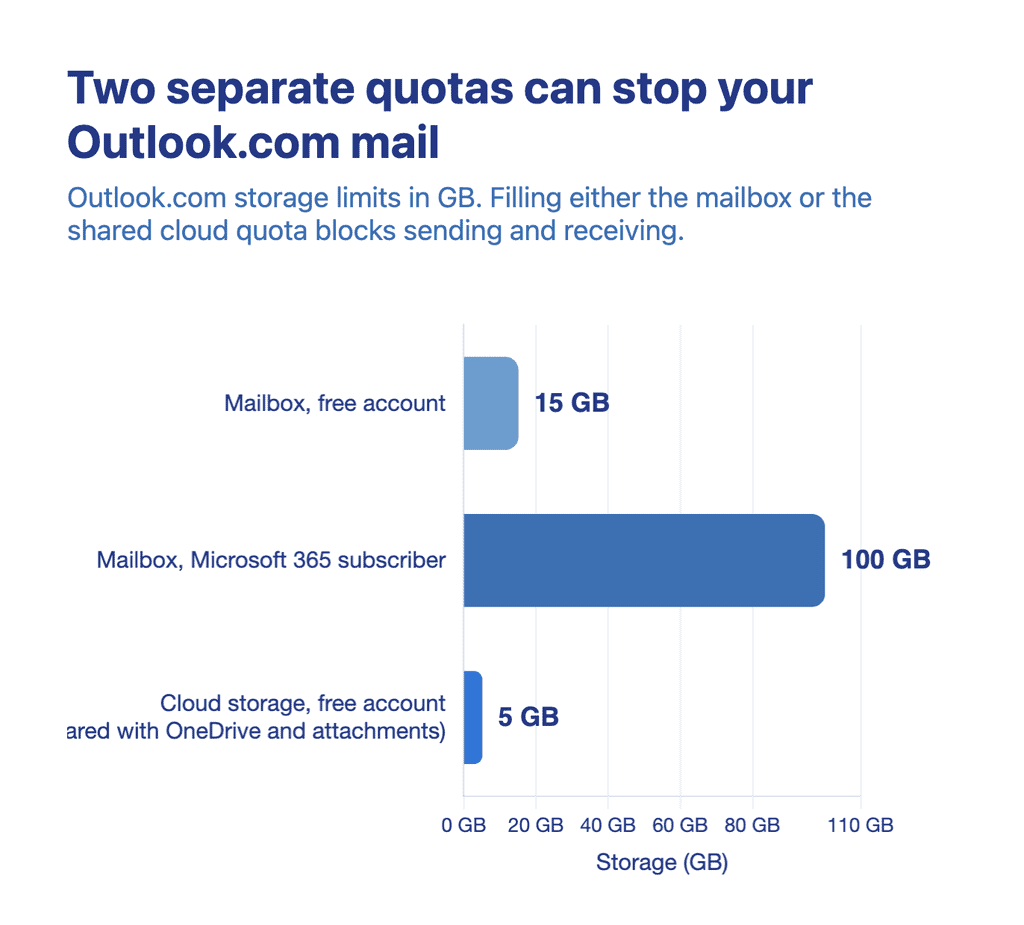
The cloud quota is the one people usually miss. If your cloud storage fills up, Outlook.com stops sending and receiving, even when your mailbox still has room.
Check your usage under Settings > General > Storage. Then empty Deleted Items and Junk Email, and remove old emails with large attachments.

7. Update or repair Outlook
An outdated app can cause sync errors, so start with updates. On your phone, update Outlook through the App Store or Google Play.
In classic Outlook, go to File > Office Account > Update Options > Update Now.
If Outlook is still not receiving emails, run Microsoft’s troubleshooter (Windows only). Microsoft has moved the Support and Recovery Assistant’s Outlook diagnostics into its Get Help app, and removed SaRA from Windows with the March 2026 updates.
That means older guides pointing you to SaRA are out of date. Open Get Help from your Windows Start menu, search for Outlook and follow its suggestions.
Last resort for classic Outlook: a new profile. Open Control Panel > Mail > Show Profiles, select Add, then set up your account again.
What if Outlook is not sending emails either?
When Outlook is not sending or receiving emails, go back to fixes 1, 2 and 6. Outages, offline mode and full storage all block mail in both directions.
If Outlook is not sending emails but receiving works fine, check these:
- A stuck Outbox: a message with a large attachment can get stuck and hold up others. Delete it or move it to Drafts.
- Sending limits: according to Microsoft, Outlook.com accounts with a Microsoft 365 subscription can email 5,000 recipients a day and 500 per message. Free accounts get lower limits.
- A new account: fresh Outlook.com accounts start with a low, temporary sending quota that rises as you use them.
Final Thoughts
Most of the time, Outlook not receiving emails comes down to a folder, a filter or full storage. Start with fix 1 and work down the list; you’ll usually find the cause before you reach fix 7.
And if you’d rather use an inbox you fully control, Mailfence is a private alternative with:
- OpenPGP end-to-end encryption
- No ads and no tracking
- Protection under Belgian privacy law and the GDPR
- Interoperability with other email accounts, so you can manage multiple addresses from one secure inbox
FAQ: Why I'm not receiving my emails Outlook
Why can I send emails from Outlook but not receive them?
Your outgoing mail may be working normally while something interferes with incoming messages. Check your inbox rules, forwarding settings, and blocked senders list. It's also worth checking your Junk Email folder in case Outlook has filtered out legitimate messages.
If the problem affects only one sender, ask them to confirm the address they used and whether they received a delivery failure notice.
Why are emails arriving in Outlook on the web but not in the desktop app?
This usually points to a syncing or connection problem with the desktop app. If your emails appear when you sign in through a browser, your mailbox is receiving them.
In classic Outlook, check the connection status at the bottom of the window, then select Send/Receive All Folders. In the new Outlook, try syncing your account and restarting the app. If neither helps, check for available updates.
Why am I only missing emails from one person?
Check your Junk Email folder and blocked senders list first. An inbox rule could also be moving messages from that person somewhere else.
If you still can't find them, ask the sender to double-check your email address and confirm that the message was sent successfully. For work or school accounts, your IT administrator may be able to check whether the message was blocked or quarantined.
Why are my emails going to Junk Email or the Other folder?
Outlook can filter messages into Junk Email or sort them into the Other tab when Focused Inbox is enabled. Inbox rules may also move messages automatically.
Check these folders before changing your settings. If you find a legitimate message in Junk Email, mark it as Not junk. If it's in Other, move it to Focused if you want similar messages to appear there in the future.
Can a full mailbox stop Outlook from receiving emails?
Yes. If your Microsoft cloud storage is full, Outlook.com may stop receiving new messages. Senders may receive a delivery failure notice, and messages that bounced back might not arrive automatically once you've freed up space.
Check your Microsoft storage usage, delete files or emails you no longer need, and empty Deleted Items. If someone tried to email you while your mailbox couldn't accept messages, ask them to send it again.
How can I tell whether Outlook is down or the problem is with my account?
Try opening Outlook.com in a browser. If it works there but not in your desktop app, the issue may be related to the app or its connection.
If Outlook.com isn't working either, check Microsoft's service status for a possible outage. If the service is running normally, review your account settings or contact Microsoft Support. For a work or school account, your IT team may need to investigate.
How do I force Outlook to check for new emails?
In classic Outlook for Windows, press F9 or select Send/Receive All Folders to check for new messages manually.
New Outlook and Outlook.com sync messages automatically. If new emails aren't showing up, check your connection and account sync settings rather than repeatedly refreshing your inbox.
What should I do if Outlook still isn't receiving emails?
If you've checked your folders, rules, storage, and connection without finding the cause, try signing in to Outlook.com to see whether the missing messages appear there.
For a work or school account, contact your IT administrator and ask them to check whether incoming messages are being rejected, blocked, or quarantined. For a personal account, Microsoft's support team can help investigate further.


